



Withdrawal at PHCash: Limits, GCash, Maya & Cashout Steps
Withdrawal at PHCash is built around a few clear checks: Choose GCash or Maya, confirm the amount available for cashout, enter a valid Transaction Password, and review the receiving account before submitting. Those details matter more than rushing through the cashier.
PHCash Withdrawal at a Glance
The Withdrawal area at Phcash keeps the main cashout controls on one screen. GCash and Maya appear as wallet choices, while the balance area separates Central Wallet from Available Amount. That distinction is worth checking before choosing any amount.
The visible Withdrawal range is ₱100 to ₱20,000, with preset buttons for:
- ₱100
- ₱300
- ₱500
- ₱800
- ₱1,000
- ₱2,000
- ₱5,000
- ₱10,000
- ₱15,000
- ₱20,000
There is also a manual amount field, a Refresh Balance option, a Transaction Password field, and the final Submit button.
One detail that can easily be overlooked is the daily Withdrawal counter. A player may see a line such as “Remaining Number of Withdrawal Today: 20.” Read that number as the current counter displayed for the account, not as a permanent promise that every account will always receive exactly 20 cashouts per day.
A good Withdrawal check takes less than a minute: Available Amount, receiving wallet, cashout amount, and Transaction Password. Most preventable mistakes happen when one of those four is skipped.
How to Make a Withdrawal
A Withdrawal becomes much easier when each field is handled in order rather than jumping straight to Submit.

How to Make a Withdrawal
Choose GCash or Maya
Start by selecting the wallet that should receive the money. GCash and Maya are both available directly from the Withdrawal menu.
The important part is not simply choosing the familiar logo. Check that the account information attached to that wallet is still correct.
For example, if you normally receive money through GCash but recently changed your mobile number, verify the account details before requesting ₱10,000. Sending first and planning to fix the information afterward creates an unnecessary problem.
The same applies to Maya. If the saved receiving details need updating, handle that through Account Management before making another Withdrawal.
Check Available Amount Before Choosing a Value
Two balance figures can appear in the cashier:
- Central Wallet
- Available Amount
Do not treat them as interchangeable.
Central Wallet gives you a view of the balance held in the main wallet area. For an immediate Withdrawal decision, Available Amount is the more important figure because it tells you how much is currently available for the cashout process.
Suppose Central Wallet contains ₱6,500 but Available Amount is only ₱4,000. Selecting ₱5,000 simply because the money appears somewhere in the account can lead to a failed request.
Use Refresh Balance when the displayed amount may have changed after recent play, a balance transfer, or another account action.
Select the Withdrawal Amount
Once the available balance is clear, choose one of the preset buttons or enter an eligible amount manually.
The current Withdrawal field runs from:
₱100 minimum to ₱20,000 maximum per entry.
A preset can save time, but it does not replace the balance check. Selecting ₱20,000 while only ₱12,000 is available will not make the extra funds withdrawable.
A cleaner sequence is:
- Confirm the Available Amount.
- Select GCash or Maya.
- Choose an amount within ₱100–₱20,000.
- Check that the receiving wallet information is correct.
- Enter the Transaction Password.
- Review everything once.
- Press Submit.
That final review is especially useful with larger values. A ten-second check before a ₱20,000 Withdrawal is far better than trying to correct an account or amount mistake afterward.
Enter the Transaction Password
The Transaction Password is part of the Withdrawal confirmation process. Treat it separately from the normal habit of simply logging in and choosing an amount.
Type it carefully and avoid repeated guessing if it is rejected. Several failed attempts rarely solve a forgotten password and may complicate account access.
Keep this password private. Anyone asking you to send a Transaction Password through chat, social media, or another person’s wallet should be treated cautiously.
Withdrawal Limits and Daily Requests
The amount range visible in Withdrawal is straightforward:
| Withdrawal detail | Current cashier setting |
| Minimum amount | ₱100 |
| Maximum amount shown | ₱20,000 |
| Largest preset button | ₱20,000 |
| Wallet methods shown | GCash and Maya |
| Daily request counter | Displayed in the cashier |
The ₱20,000 figure should be understood as the maximum amount shown for one Withdrawal entry, rather than automatically being interpreted as the maximum amount a player could ever withdraw in a day.
Those are different limits.
For example, a player with a larger eligible balance may need more than one request, provided the account still has Withdrawal attempts available and no other account restriction applies.
The daily counter helps here. If it reads 20, it means 20 requests remain according to the current account display. Check the actual number before planning several cashouts because the figure may not always be identical for every session or account.
GCash and Maya Withdrawal
GCash and Maya serve the same basic purpose inside Withdrawal: They provide the destination for the cashout. The better choice is usually the wallet whose details are already correct, accessible, and under your control.
| Check | GCash | Maya |
| Available in Withdrawal | Yes | Yes |
| Check receiving account first | Yes | Yes |
| Uses the same amount area | Yes | Yes |
| Transaction Password required in the cashout flow | Yes | Yes |
There is little value in changing from GCash to Maya purely because one request does not immediately behave as expected. First identify the actual cause.
If GCash information is incorrect, fix the GCash information. If the problem is an unavailable balance, switching the receiving wallet will not make that balance available.
Likewise, a Transaction Password error remains a password issue regardless of whether Maya or GCash is selected.
That simple distinction saves time: Identify whether the problem concerns the wallet, the amount, or the account before changing anything.
Central Wallet and Available Amount
This is one of the most useful parts of the Withdrawal screen because it helps prevent a common assumption: Seeing money in the account does not always mean the entire displayed balance is immediately available for cashout.
When the two figures are different, work from Available Amount first.
For instance:
- Central Wallet: ₱8,500
- Available Amount: ₱5,000
In that situation, attempting a ₱8,000 Withdrawal merely because Central Wallet is higher is not a sensible first move. Start with the amount currently available.
If Available Amount unexpectedly reads ₱0.00, do not repeatedly press Refresh Balance or submit the same request over and over.
Check whether there are still unsettled account activities, active promotion conditions, or other requirements affecting the balance. If nothing explains the difference, then support becomes useful because you can describe the exact figures rather than simply saying, “My Withdrawal doesn’t work.”
Specific information makes troubleshooting much faster.
Common Withdrawal Problems
A failed or delayed Withdrawal does not always mean there is a problem with the payment channel. The location of the error usually gives a clue.
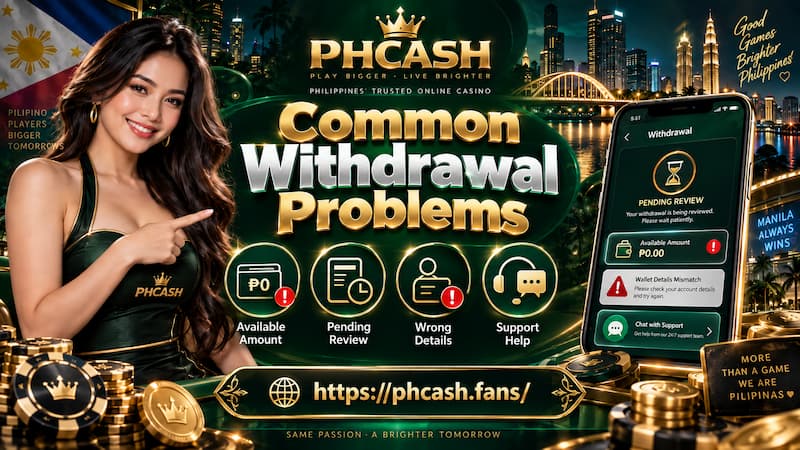
Common Withdrawal Problems
Available Amount Is Zero
Start with the basics:
- Check Central Wallet.
- Check Available Amount separately.
- Use Refresh Balance once.
- Confirm whether recent activity has fully settled.
- Review any active bonus or turnover conditions attached to the account.
If money appears in Central Wallet but Available Amount stays at zero, focus on eligibility rather than repeatedly changing the Withdrawal value.
The Amount Cannot Be Submitted
Check the amount against three simple questions:
- Is it at least ₱100?
- Is it no more than ₱20,000?
- Is it equal to or below Available Amount?
A ₱50 request is below the displayed minimum. A ₱25,000 request is above the displayed maximum. A ₱10,000 request with only ₱8,000 available is also a mismatch.
These are different problems, but all three can be caught before pressing Submit.
Transaction Password Is Rejected
Re-enter the password carefully. Watch for typing errors, especially when using a mobile keyboard.
If you genuinely do not remember it, stop guessing and use the proper account recovery or support process.
Never send the password to someone claiming they need it to “process” your Withdrawal manually.
GCash or Maya Information Is Wrong
Do not submit another cashout hoping it will correct itself.
Open Account Management, inspect the payment information, and make sure the receiving account you intend to use is the one actually connected to Withdrawal.
This becomes particularly important after changing a mobile number or switching to a new wallet account.
Withdrawal Remains Pending
A pending request should be checked systematically rather than resubmitted immediately.
Look at:
- Withdrawal amount
- Receiving wallet
- Account details
- Available balance
- Verification status
- Any active bonus requirements
- Existing transaction or request status
If support is needed, keep the amount and wallet details ready. Saying “My ₱5,000 GCash Withdrawal is still pending” gives support far more useful information than simply saying “cashout problem.”
Withdrawal Security Checks
Withdrawal security is mostly about preventing mistakes before money leaves the account.
Keep a few habits consistent:
- Use a GCash or Maya account you control.
- Confirm the recipient details before Submit.
- Never share the Transaction Password.
- Do not let someone else cash out through their wallet for convenience.
- Keep relevant transaction information until the funds arrive.
- Update outdated wallet information before requesting another Withdrawal.
There is no advantage in rushing the final step. Even when the process is familiar, checking the wallet and amount one more time is a small habit that can prevent a much bigger headache.