



Phcash App: Android APK, iPhone Setup and Mobile Login
Phcash App gives mobile users in the Philippines a direct way to reach the casino lobby, manage a Peso balance, and return to games without creating another account. Android users can install the APK, iPhone users follow a different setup route, while anyone who prefers not to install anything can continue through a mobile browser.
Phcash App and Mobile Access
App makes the most sense for someone who opens Phcash regularly. Instead of searching for the login page each time, the casino sits alongside the other apps on the phone and opens with fewer steps.
That does not automatically make installation the best choice for everybody. A player who checks the casino once or twice a month may gain very little from adding another app. Someone using a shared phone may prefer the browser and leave no saved login behind.
The current Android installation package is approximately 7.38 MB, which is relatively small for a casino application. The number should not be treated as permanent, though. New builds can change the file size without changing the basic way the App works.
The useful distinction is simple:
- Frequent use: The installed App keeps access close at hand.
- Occasional use: Mobile browser access is usually enough.
- Shared phone: Browser access avoids leaving another installed application on the device.
- Limited storage: The browser removes the need to store the APK and installed files.
- Regular mobile casino sessions: The App offers the cleaner routine.
Installing the App changes how Phcash is opened, not the account behind it. Login details, balance, profile, deposit and withdrawal access remain tied to the same account.
Android APK Requirements and Download
Android installation is slightly different from installing an app through Google Play because the APK is downloaded directly and opened manually.
A modern phone should handle the package comfortably, but having the right environment prevents most installation problems before they start.
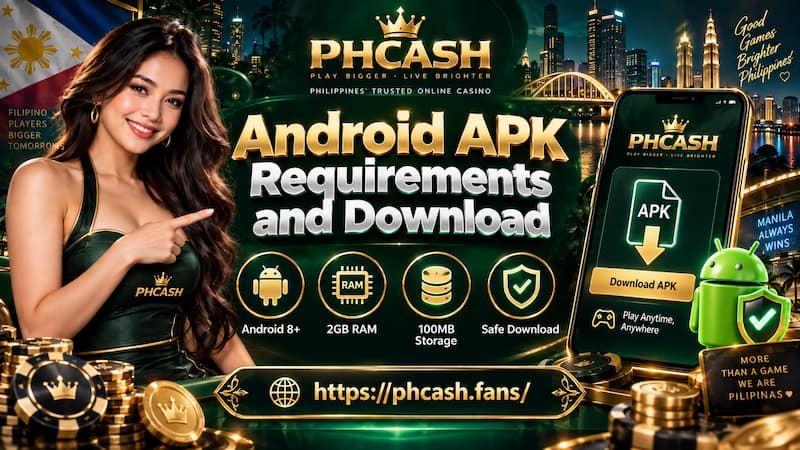
Android APK Requirements and Download
Recommended Android Setup
A practical baseline includes:
- Android 8.0 or newer
- At least 2 GB RAM
- Stable Wi-Fi, 4G, or 5G
- Around 100 MB of available storage
- Permission to install apps from the browser or file manager used for the download
The 7.38 MB figure refers to the APK package itself. It should not be confused with the final storage footprint. Android also needs room for temporary installation files, cached data, and future updates, which is why leaving roughly 100 MB free is more sensible than working with only a few megabytes.
A phone with 20 MB left may technically download the file and still fail during installation. Clearing old screenshots, large Telegram downloads, or unused apps first is often easier than troubleshooting an incomplete install afterward.
Installing the Phcash APK
The process is short:
- Open the current Phcash download option on the Android phone.
- Download the APK package.
- Open the completed download.
- Allow installation from the browser or file manager if Android asks.
- Complete the installation.
- Open the App and enter the existing login details.
Android 8.0 and newer normally handle this permission by source. If Chrome downloaded the APK, Chrome may need permission to install it. If the file is opened through Samsung My Files, the permission can instead apply there.
That distinction matters when the phone says installation is blocked. Repeatedly downloading the APK will not fix a permission attached to the wrong app.
Android Installation Permission
The phrase “install unknown apps” can sound more alarming than the setting actually is. It simply means Android is being asked to install a package that did not come through its usual app store.
The useful part is that the permission does not need to remain permanently enabled.
After the App is installed, a player who rarely installs APK files can return to Android settings and disable that permission again. This leaves fewer applications capable of starting manual installations later.
Before approving an APK, check the basics:
- The download was intentionally started.
- The filename appeared after tapping the expected download option.
- No unrelated page opened and asked for login information first.
- Android did not request an unusual collection of permissions before installation even began.
- The file completed downloading instead of stopping halfway through.
If something in that sequence feels different from a normal APK installation, restarting from the intended download source is cleaner than forcing the process through.
Phcash App on iPhone
An Android APK cannot be installed on an iPhone. iOS uses a different installation route, and players should treat the two methods separately rather than trying to move the same file between devices.
Where a profile-based iPhone installation is offered, the flow normally involves Safari and the iPhone settings menu.
iPhone Profile Installation
The usual sequence is:
- Open the mobile installation option in Safari.
- Select the iPhone or iOS download route.
- Allow the configuration profile to download if prompted.
- Open Settings.
- Go to the profile notification or General → VPN & Device Management.
- Review the profile details.
- Complete the installation and return to the home screen.
The review step deserves attention. A configuration profile can contain more than a simple shortcut, so blindly pressing Install is not a good habit.
Look at the profile name and description before approving it. If the information shown on the phone appears unrelated to Phcash or the installation just started from an unexpected page, stop there rather than treating every iPhone prompt as routine.
For someone who dislikes profile installation entirely, browser access remains the simpler option.
Mobile Browser Instead of the App
There is no need to install an App simply because one exists.
Mobile browser access can be the better fit when the phone is shared, storage is tight, or Phcash is only opened occasionally. It also avoids dealing with APK permissions on Android or profile settings on iPhone.
A regular player will probably notice the opposite. Opening an installed icon is quicker, especially when checking a game lobby or returning to an unfinished session several times during the week.
The choice comes down to habit rather than a universal “best” method:
- Use the App when Phcash is part of the normal mobile routine.
- Use the browser when access is occasional.
- Prefer the browser on shared devices, especially when credentials should not remain saved.
- Choose the browser when installation prompts are unwanted.
- Choose the App when reducing repeated login-page navigation is useful.
Browser access should not be treated as a weaker account. The same player profile and Peso balance remain connected to the login rather than to one particular icon on the phone.
Login and Account Continuity
Switching from browser to App does not mean starting over.
An existing account should be used with the same login details after installation. There is no practical reason to create a second registration merely because a new phone was purchased or the access method changed.
This becomes especially important when money is already sitting in the account.
For example, suppose a player has ₱2,400 available while using Chrome on an Android phone. Installing the App does not create a separate ₱0 balance. Logging into the existing account brings the player back to the same account information and cashier.
The same principle applies after changing phones. The device is only the access point.
Creating duplicate accounts can make account recovery, bonus conditions, verification, or payment history harder to follow. Keeping one account and moving the login between devices is the cleaner approach.
App Updates and APK Changes
A casino APK should not be treated like an old photo that can sit in Downloads forever and always remain current.
New builds may replace earlier ones. Package size can change. A version that installed correctly months ago may no longer be the right file after an update.
When the App asks for a newer build, downloading the current package is preferable to digging through an old downloads folder and reinstalling whatever APK happens to be there.
A simple update routine works well:
- Check whether the existing App opens normally.
- If an update is requested, use the current download route.
- Download the new package.
- Install it over the existing App when Android allows.
- Confirm the account opens correctly.
- Delete obsolete APK files once they are no longer useful.
Do not attach too much importance to a fixed version number in an article or saved note. The installation experience matters more than whether yesterday’s build was labelled 2.1.4 or 2.1.5.
Download and Installation Checks
Most installation mistakes happen before the App even opens.
An APK forwarded through a group chat may have the same filename as a legitimate package. A copied iPhone installation link may send the browser somewhere entirely different. The safer habit is to pay attention to the source and the phone’s own prompts rather than trusting the filename alone. Review privacy policy before submitting personal information through any installation or account screen.
Before installation:
- Check the address being used before downloading.
- Avoid APK files reposted on unrelated file-sharing pages.
- Do not disable several security settings just because a page tells you to.
- Read the iPhone profile information before approving it.
- Keep Android or iOS reasonably updated.
- Avoid saving casino login credentials on a shared device.
- Stop if the installation suddenly asks for unrelated personal information.
A normal App installation should feel predictable. Download the file, approve the required installation step, open the App, then log in. If a process suddenly includes surveys, extra downloads, unrelated browser extensions, or requests for passwords before the App is installed, that is a reason to stop rather than continue clicking.
Common App Installation Problems
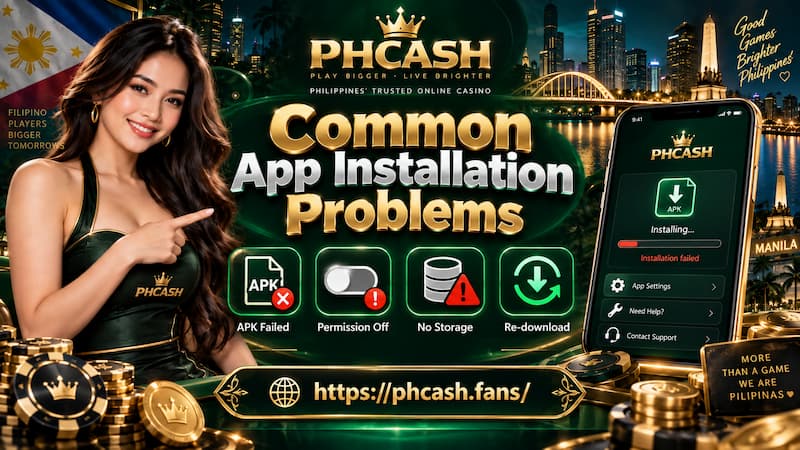
Common App Installation Problems
APK Will Not Install
Start with the obvious checks before downloading the file five more times.
Confirm that the phone has enough free storage, the APK completed downloading, Android meets the recommended version, and installation permission is enabled for the application opening the file.
A damaged partial download can also fail immediately. Delete it and download a fresh copy rather than repeatedly opening the same broken package.
Install Unknown Apps Is Missing
On newer Android versions, the setting may not appear where older tutorials show it.
Look for the installation permission attached to the browser or file manager being used. Chrome, Samsung Internet, Files, and similar apps can each have separate permission.
iPhone Profile Does Not Appear
Open Settings soon after downloading the profile and check VPN & Device Management.
If the profile is no longer available, restart the iPhone installation flow rather than searching through unrelated menus or installing a different profile with a similar name.
App Opens but Login Fails
Installation and account access are two different problems.
If the App opens successfully but the password is rejected, reinstalling the APK is unlikely to solve it. Check the entered login details, password status, or account recovery options first.